Take a look at our
ThinkPads.com HOME PAGE
For those who might want to contribute to the blog, start here: Editors Alley Topic
Then contact Bill with a Private Message

DIY T25 Experience

T25 Anniversary/Retro
Post Reply
Message
Author
TPFanatic
Senior ThinkPadder
Senior ThinkPadder
Posts: 2824
Joined: Thu Jul 30, 2015 11:29 pm

DIY T25 Experience

#1 Post by TPFanatic » Mon Oct 16, 2023 8:22 pm

I decided to DIY my own T25.

Acquired:
- a cheap T470 with broken LCD (didn't realize it had an SVP lock, but it should've been obvious) $45
- a cheap T470 motherboard without an SVP lock $37
- a T25 palmrest-frame $37
- a T25 keyboard (thought I was getting American, turns out I ordered the Scandinavian, not complaining it was cheaper anyway) $71
- an X1 Carbon touchpad $20
- non-touch cable $14
- replacement LCD overpaid for it years ago, not counting it here.

Subtotal not counting expense on parts that I wound up not being able to use: $224

The result:

Currently lacking internal storage I've only so far accomplished booting Hirens and Ubuntu. The T470's drive caddy doesn't fit the T25 palmrest-frame for some reason. I'll have to modify it and acquire some 2280 for it.

I decided to surgically transfer the corner of the T470's frame with the power button into the T25's palmrest-frame and drill a hole in the palmrest. The result is imperfect, but functional. The laptop won't power on without the power button plugged in.

The 7 row keys are properly laid out and functional, but the Fn hotkeys aren't properly mapped. I'll see if updating the BIOS sorts this out. I was under the impression a T470 would magically turn itself into a T25 with the T25's keyboard plugged in, but clearly there's some more nuance to this.

My initial thoughts:

- This is the worst ThinkPad I've ever taken apart and serviced, in large part to the power button flex cable routing.
- The whole laptop seems constructed upside-down compared to our favorite classic ThinkPads.
- The base feels flimsy.
- The keyboard is very flimsy and relies entirely on the palmrest-frame to support it. It rattles in the arrow keys corner. I will have to try some thin tape to brace it.
- The keyboard (sans TrackPoint keys) and palmrest have a nice soft-touch coating to them.
- When I pulled out the cats-tongue to replace it with a soft-dome, the cats-tongue took the underlying plastic trackpoint cap with it. :roll: Typical.
- The touchpad I acquired is supposedly a glass clickpad, I don't feel anything special about it, I don't like clickpads, but I suppose it's nicer than the T470's original plastic clickpad.

Current specs:
i5 7300u, FHD non-touch, 24GB RAM, no storage

To be continued, someday....

RealBlackStuff
Admin Emeritus
Admin Emeritus
Posts: 24727
Joined: Mon Sep 18, 2006 5:17 am
Location: Loch Garman, Éire

Re: DIY T25 Experience

#2 Post by RealBlackStuff » Tue Oct 17, 2023 12:17 am

Not to critisise your experience, but IMHO you should have gone for a T480 instead.
Lovely day for a Guinness! (The Real Black Stuff)
But I actually prefer Murphy's from Cork!

dr_st
Admin
Admin
Posts: 10032
Joined: Sat Oct 29, 2005 6:20 am
Location: Israel

Re: DIY T25 Experience

#3 Post by dr_st » Tue Oct 17, 2023 2:50 am

A T480 in a T25 shell requires a bit more work, as it is not a straight fit, but performance-wise, it is very much worth it.

Still, this is a very interesting project. A Thinkpad 25 is a rare case of a system whose uniqueness makes it sell for way more than the sum of its parts.

My dream project would be to take a T470 board, desolder the CPU, and resolder an 8th-gen quad-core (the kind you would find on a T480). However that is an order of magnitude more difficult and requires expensive specialty equipment. Then you would also probably need a T480 BIOS/EC to properly identify/configure the CPU.
Thinkpad 25 (20K7), T16 Gen 3 (21MQ), Yoga 14 (20FY), T430s (IPS FHD + Classic Keyboard), X220 4291-4BG
X61 7673-V2V, T60 2007-QPG, T42 2373-F7G, X32 (IPS Screen), A31p w/ Ultrabay Numpad

Ibthink
Senior Member
Senior Member
Posts: 985
Joined: Wed Apr 11, 2012 6:28 am
Location: Gelnhausen, Germany

Re: DIY T25 Experience

#4 Post by Ibthink » Wed Oct 18, 2023 3:54 am

Such projects are always fascinating.

One more thing you could do: The T470 had an optional Magnesium top cover. To me, this would be preferable to the standard PPS top cover used for these machines.
TPFanatic wrote:
Mon Oct 16, 2023 8:22 pm
- The whole laptop seems constructed upside-down compared to our favorite classic ThinkPads.
Yeah, this is true for pretty much all modern ThinkPads except some of the workstation models of the P series.

I think the reason is that the machines are too thin now to do the kind of sandwich construction that was usually used for older T series ThinkPads, where you had components on both sides of the motherboard. If you can only put components on one side of the motherboard, constructing it upside-down makes sense, because this way you can access the internals via the bottom cover, which is easier to remove compared with a keyboard and palmrest removal, where you have to fiddle with cables. When the devices were still thick enough to have components on both sides of the motherboard like with the T420, you could have the little service doors to access some components via the bottom, with the rest being accessible via the keyboard and palmrest.

The only Ultrabook type ThinkPads where Lenovo didn't construct it upside down were the original ThinkPad X1 (2011) and ThinkPad X1 Carbon Gen 1 (2012), where you had to remove the keyboard/palmrest every time you wanted to access the internals. Clearly not ideal.
IBM ThinkPad R50e | lenovo ThinkPad X301 | lenovo ThinkPad Z61t

dr_st
Admin
Admin
Posts: 10032
Joined: Sat Oct 29, 2005 6:20 am
Location: Israel

Re: DIY T25 Experience

#5 Post by dr_st » Wed Oct 18, 2023 5:37 am

Ibthink wrote:
Wed Oct 18, 2023 3:54 am
One more thing you could do: The T470 had an optional Magnesium top cover. To me, this would be preferable to the standard PPS top cover used for these machines.
Yes, I actually got myself one of these as a spare part. If I ever need to repair my TP25 or build a Frankenpad, I will use it. :)
Thinkpad 25 (20K7), T16 Gen 3 (21MQ), Yoga 14 (20FY), T430s (IPS FHD + Classic Keyboard), X220 4291-4BG
X61 7673-V2V, T60 2007-QPG, T42 2373-F7G, X32 (IPS Screen), A31p w/ Ultrabay Numpad

TPFanatic
Senior ThinkPadder
Senior ThinkPadder
Posts: 2824
Joined: Thu Jul 30, 2015 11:29 pm

Re: DIY T25 Experience

#6 Post by TPFanatic » Wed Oct 18, 2023 10:12 am

To address the T480 in the room: I prefer the ventral dock and slim tip connector of T470. I'm not building this to be a powerhouse, I could have bought a faster L14 for less money if that was my goal, which is simply to have a 7 row ultrabook. Emphasis on 7 row, emphasis on ultrabook. I appreciate the "upside-down" construction for accomplishing what is an incredibly thin laptop, while the efficiency of ULV Kaby Lake outpaces any classic I've tried hauling around. T25 satisfies my aesthetic preferences ; DIY satisfies my frugality. :wink:

Edit to add:

Updating the BIOS+EC with the 7 row attached corrected the Fn Hotkey assignments. The keyboard is now fully functional*. I absolutely dig the return of the dedicated media keys, and the backlight is cool. I managed 114 WPM on 10fastfingers.

*Some Hotkeys seem dependent on Vantage and its dependencies being installed, which I have not done in foolish favor of the Power Manager unblock.

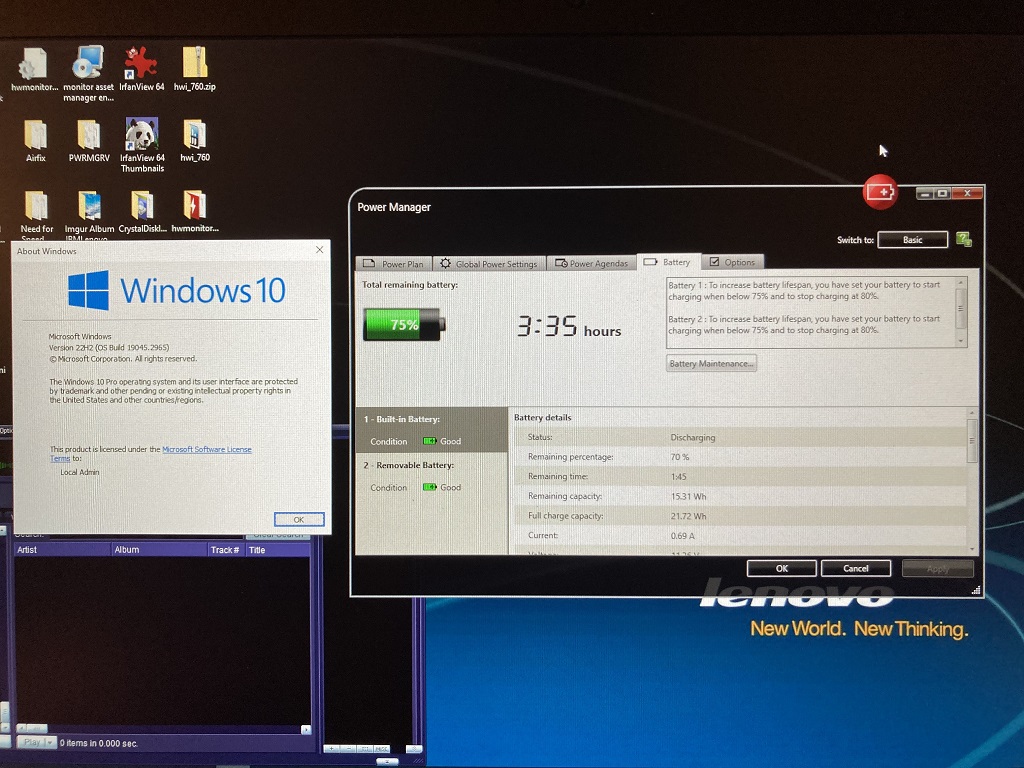
The CPU can downclock to an incredible 400 mhz and estimates a 3 hour runtime on the internal battery alone. :o (my removable battery is apparently dead) This slaughters my best runtimes with T430s (6c, 1 hour), X61 (4c, 1.5 hours), T420 (9c, 2 hours).
I'm really digging this laptop and look forward to the great things I will do with it...

TPFanatic
Senior ThinkPadder
Senior ThinkPadder
Posts: 2824
Joined: Thu Jul 30, 2015 11:29 pm

Re: DIY T25 Experience (Now With Pictures)

#7 Post by TPFanatic » Mon Oct 23, 2023 6:33 pm

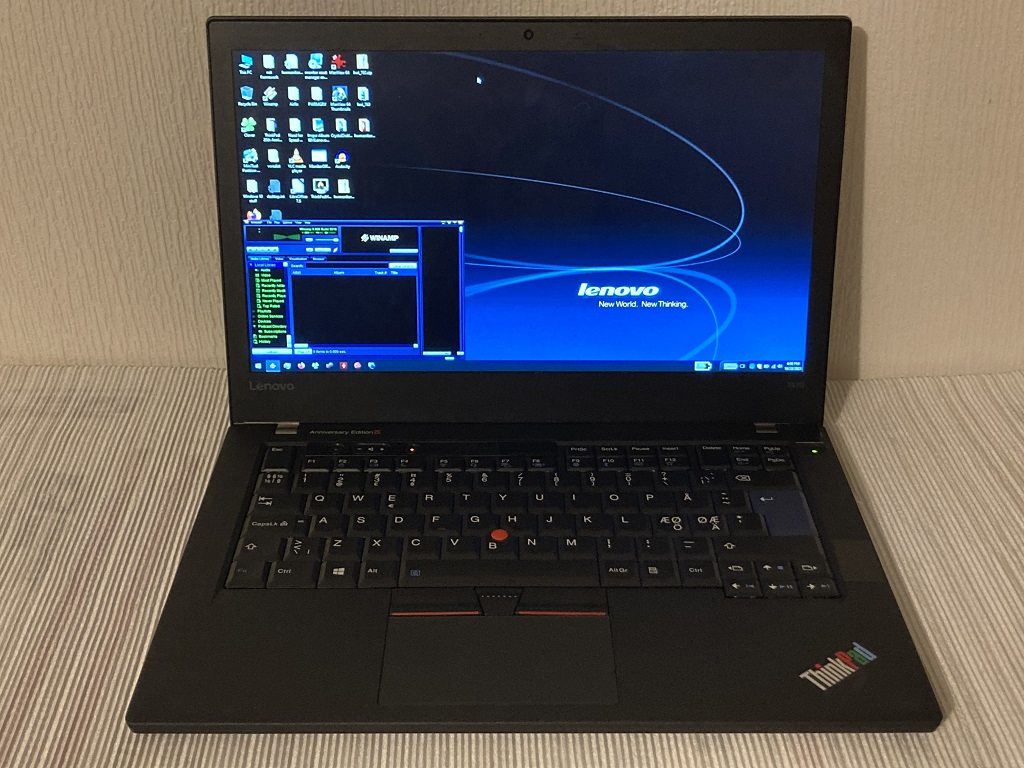
Finally feeling confident to share visuals of my final product. It's not a real T25, it's not perfect, but I built it and it's mine and I love it.

Image
https://i.postimg.cc/63H5JXd2/IMG-3045a.jpg
Figure A: My one-of-a-kind Venticinque, sporting a modest i5-7300U, 24GB RAM, B140HAN01.1 1920x1080, and PM991 256GB. Truly this is nothing more than the standard secondhand ex-corporate T470 with enough 25th Anniversary bits to make it meaningful to me as a classic ThinkPad enthusiast.

Image
https://i.postimg.cc/XqpNnz82/IMG-3048a.jpg
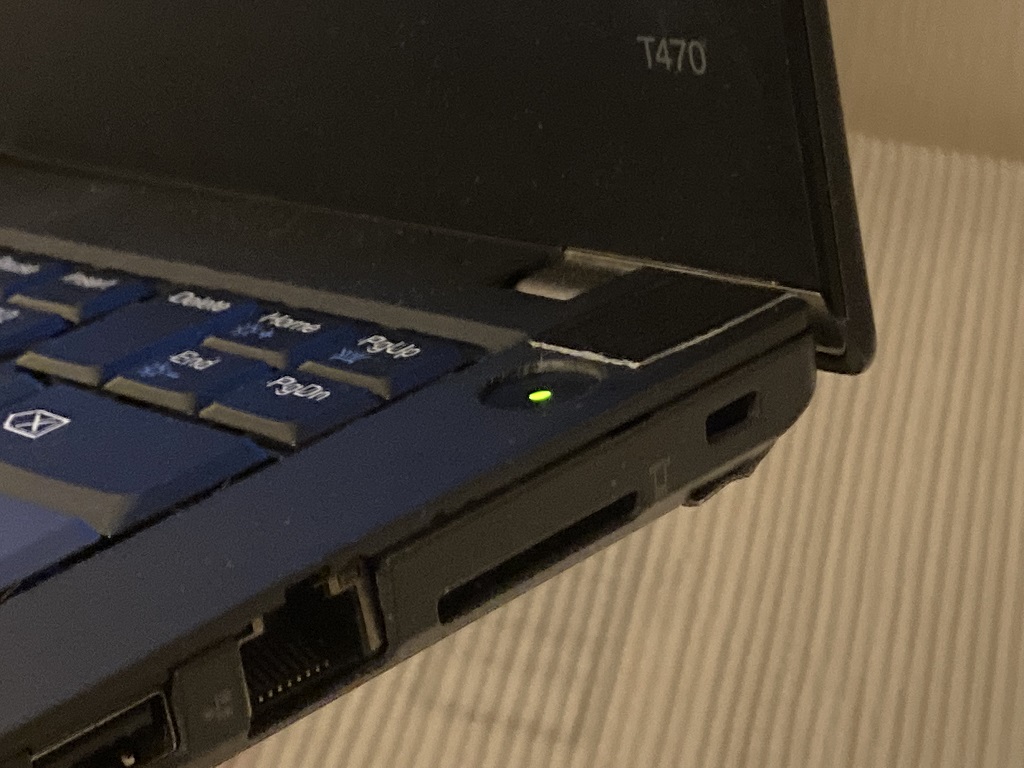
Figure B: The unobtanium-status of the 01HX688/01AV232 Power Button Cable required me to improvise. I decided to surgically transplant the original T470 power button and its corresponding magnesium corner into the T25 palmrest. The result fails to properly pop together so acted like a doorstop against closing the lid. Rather than endure additional disassembly and reassembly of the laptop to finesse the fit, I found a janky but effective solution in gorilla tape that is acceptable to me and that's all that matters. The laptop does not pop apart when opening/closing the lid.

Image
https://i.postimg.cc/zv6zvF2q/IMG-3051a.jpg
Figure C: Unblocked Power Manager 6 is properly handling charge thresholds on both OEM batteries. I'll keep my conspiratorial conjecture about Vantage to myself today. But I favor Power Manager.

RealBlackStuff
Admin Emeritus
Admin Emeritus
Posts: 24727
Joined: Mon Sep 18, 2006 5:17 am
Location: Loch Garman, Éire

Re: DIY T25 Experience

#8 Post by RealBlackStuff » Tue Oct 24, 2023 12:22 am

Nice job!
All you need now is a fine-tipped black marker to cover the 'whites' of the gorilla-tape.
TPFanatic wrote:I managed 114 WPM on 10fastfingers
In my "working days" I was a mainframe systems analyst/programmer.
The fastest I ever managed was maybe 25 WPM using 2 fingers!
Lovely day for a Guinness! (The Real Black Stuff)
But I actually prefer Murphy's from Cork!

dr_st
Admin
Admin
Posts: 10032
Joined: Sat Oct 29, 2005 6:20 am
Location: Israel

Re: DIY T25 Experience (Now With Pictures)

#9 Post by dr_st » Tue Oct 24, 2023 3:25 am

TPFanatic wrote:
Mon Oct 23, 2023 6:33 pm
Figure B: The unobtanium-status of the 01HX688/01AV232 Power Button Cable required me to improvise. I decided to surgically transplant the original T470 power button and its corresponding magnesium corner into the T25 palmrest. The result fails to properly pop together so acted like a doorstop against closing the lid. Rather than endure additional disassembly and reassembly of the laptop to finesse the fit, I found a janky but effective solution in gorilla tape that is acceptable to me and that's all that matters. The laptop does not pop apart when opening/closing the lid.
Heh. I dropped my corporate TP25 on its rear left corner a couple of years ago, and the plastic broke, leaving a gap. I used plain black electric tape to seal it shut, it kinda looks okay, and I only had to replace it once or twice. Maybe gorilla tape is better. But the electric tape is nearly invisible, so that's a plus for me...
TPFanatic wrote:
Mon Oct 23, 2023 6:33 pm
Figure C: Unblocked Power Manager 6 is properly handling charge thresholds on both OEM batteries. I'll keep my conspiratorial conjecture about Vantage to myself today. But I favor Power Manager.
Me too. Maybe I should consider 'unblock' Power Manager on all my Win10 Thinkpads. Where are the instructions? Does everything work including power schemes / hot keys?
Thinkpad 25 (20K7), T16 Gen 3 (21MQ), Yoga 14 (20FY), T430s (IPS FHD + Classic Keyboard), X220 4291-4BG
X61 7673-V2V, T60 2007-QPG, T42 2373-F7G, X32 (IPS Screen), A31p w/ Ultrabay Numpad

TPFanatic
Senior ThinkPadder
Senior ThinkPadder
Posts: 2824
Joined: Thu Jul 30, 2015 11:29 pm

Re: DIY T25 Experience

#10 Post by TPFanatic » Tue Oct 24, 2023 4:28 am

I follow the instructions from this thread: https://forum.thinkpads.com/viewtopic.php?f=73&t=131019, linking to this Microsoft forums thread: https://answers.microsoft.com/en-us/win ... 16d34b3f3b
wmfan_somebody_stole _my_screen_name wrote:had the same problem after upgrading to build 10586, but there are always smart people out there. (credit goes to KeyboardOverMouse's post on https://www.reddit.com/r/Windows10/comm ... annot_run/), basically you need to do the following:
1. get the latest power manager from Lenovo website
2. run the downloaded file, it will fail saying " ... doesn't work on this version of Windows ..." or similar
3. go to C:\DRIVERS\VISTA\PWRMGRV and change setup.exe compatibility mode to windows 7
4. go to https://msdn.microsoft.com/en-US/window ... x#adkwin10 and download "Windows ADK for Windows 10, Version 1511"
5. run it and you only need to install "compatibility administrator"
6. run "compatibility administrator", on the left, under System Database->Applications, click "Lenovo Power Manager"
7. on the right, right mouse click setup.exe and select "disable entry"
8. now you are on the way installing and using power manager
good luck!
For step 4. I've used Windows ADK for version 2004. When installing I uncheck everything and check the first box "Application Compatibility Tools".

Unfortunately Power Manager is not fully functional. If Vantage is already installed working fine, I would retain Vantage (as is the case with my P71).

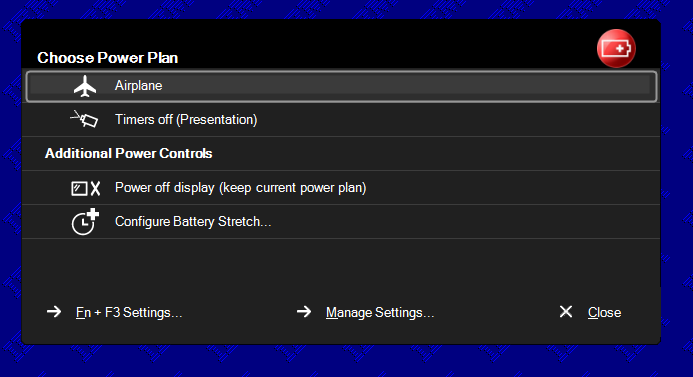
Regarding hotkeys: My Fn+F3 does nothing on this DIY-T25, I think because I don't have Vantage installed. On the true classics, with Hotkey Features functioning, Fn+F3 properly opens the Power Scheme selector. On the classics, Functional Hotkey Features is more reliant on the old vcredists being installed and the particular version of Hotkey Features (3.81) being installed. Then 7-row-swapped **30s, and this DIY-T25, work better with the newer Hotkey Features.

Image

Regarding Power Schemes: The only Power Schemes that install for me with Win 10 are Airplane and Timers off. The various others (Power Source Optimized, Max Performance, etc.) are MIA. I find the built-in Windows version of customizing the power scheme under "Control Panel\Hardware and Sound\Power Options\Edit Plan Settings" is an effective substitute.

Other quirks: The toolbar does not reliably respond to and show the correct AC-plugged-in state or the charge-level/runtime. I believe there may be a combination of old versions of drivers wherein it may work properly, but with everything up to date, it does not work.

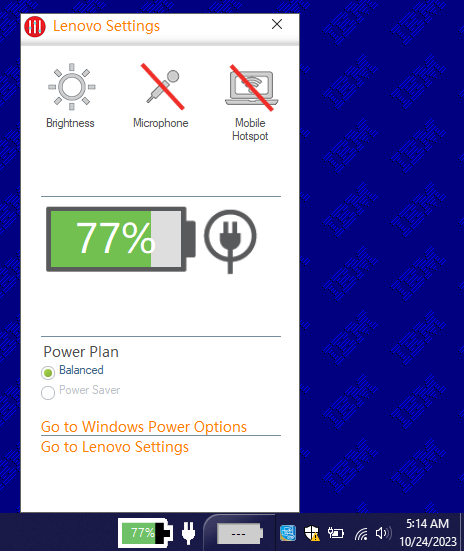
One can download and install the simple bg10ww23.exe "Lenovo Battery Gauge" toolbar to get a simple battery gauge. https://download.lenovo.com/consumer/mo ... 10ww23.exe

Clicking on it opens up this popup menu:
Image

The shortcut to Windows Power Options links to "Control Panel\Hardware and Sound\Power Options". The shortcut to Lenovo Settings opens an annoying box to the Windows Store, pressing Esc clears it.

Newer versions of the Battery Gauge exist and can be downloaded by increasing the last integer in the filename in the download.lenovo link, but I don't find they improve anything and the final versions come with Settings/Vantage bloat worked in. Conversely earlier versions don't have the popup menu.

What unblocking Power Manager 6 does functionally accomplish is a reliable and familiar means to obtain Charge Thresholds and Perform Reset, which sometimes fail to work properly when pairing modern Vantage with classic hardware. My latest experiences as such have been unsuccessful:

- On family member's T430 that we upgraded to Win 10, Vantage is for some reason not reading the genuine batteries as genuine so prohibits charge thresholds. Updating drivers did not resolve the problem. Instead we unblocked Power Manager and successfully set charge thresholds with it instead.

- On my X61, Vantage Battery settings do not work and updating drivers did not resolve. Conversely, Power Manager works.

dr_st
Admin
Admin
Posts: 10032
Joined: Sat Oct 29, 2005 6:20 am
Location: Israel

Re: DIY T25 Experience

#11 Post by dr_st » Tue Oct 24, 2023 1:48 pm

TPFanatic wrote:
Tue Oct 24, 2023 4:28 am
One can download and install the simple bg10ww23.exe "Lenovo Battery Gauge" toolbar to get a simple battery gauge. https://download.lenovo.com/consumer/mo ... 10ww23.exe
Oh, I love this one. I use it on Win8.1 on this X220 I'm typing from right now. Got the whole Lenovo Settings (pre-Vantage) installed here. Strangely, the "Go to Lenovo Settings" link does not work, but opening it manually does.
Thinkpad 25 (20K7), T16 Gen 3 (21MQ), Yoga 14 (20FY), T430s (IPS FHD + Classic Keyboard), X220 4291-4BG
X61 7673-V2V, T60 2007-QPG, T42 2373-F7G, X32 (IPS Screen), A31p w/ Ultrabay Numpad

Post Reply
  • Similar Topics
    Replies
    Views
    Last post

Return to “Thinkpad T25 Anniversary/Retro”

Who is online

Users browsing this forum: No registered users and 19 guests